

How To Get Started with UltraSearch
Everything you need to know


If you work with lots of files every day, you know the problem: the document you're looking for is somewhere on your drive, in your project folder, or in the cloud. But where exactly?
UltraSearch helps you find that file in seconds.
Simply enter a name or keyword and UltraSearch will show you matching results as you type. No setup, no waiting.
Ideal for anyone who works with documents but isn't an IT professional.
In this article, we'll give you a quick overview of what UltraSearch can do and how it will help you.
Who does UltraSearch help in particular?
With UltraSearch, we want to help anyone who works with information, documents, and projects in their daily work but isn't an IT professional.
Whether you're writing quotes, reviewing reports, or managing customer projects, UltraSearch helps you find the file you're looking for faster so you can get back to work quickly.
How to find files
To quickly find files with UltraSearch, you don't need to know exactly where they are or what they are called.
Just start typing. UltraSearch immediately starts searching in the most important locations.
Show transcription
This video contains no audio (silent screen recording). The following description conveys what is shown on screen.
It shows the UltraSearch interface with the “Search for file names” and “Search for file content” fields; the selected search paths are C:\, E:\, F:\, G:\, and H:\.
Sample search 1: Typing “Sales” instantly returns 52 files (1.57 GB), including “Sales KPIs 2023.docx” and “SalesSummary_Q4_2020.txt”.
Sample search 2: Typing “Marketing” returns 25 files (1.95 GB), including “MarketingPlan.pptx” and “MarketingStrategy_2022.jpg”.
Sample search 3: Typing “John” continuously shows matches such as “ProjectTimeline_JohnDoe.docx” and “Design John.mpg” while the search is still running.
You'll get the first results within seconds.
As in Windows Explorer, you will see various files or folders that match your search term.
Clicking on a search result opens a small preview of the content.
Show transcription
This video contains no audio (silent screen recording). The following description conveys what is shown on screen.
It shows UltraSearch Professional. The preview pane is enabled from the “View” tab.
A search for “Sales” returns 52 files (1.57 GB). In the results list, Excel files such as “Sales 2019.xlsx” and “Sales 2020.xlsx” are clicked.
The preview pane on the right instantly shows the content of the selected file — here a spreadsheet with the columns “JAM Softx ID” and “Costs” (sheet “Sheet1”) — without opening the file separately.
Can't remember the file name? No problem, because UltraSearch can also find files based on their content.
What is content search and when is it useful?
Sometimes you can't remember the file name, but you remember a word or phrase that appears in the document. That's when UltraSearch's content search comes into play.
Instead of searching by name, UltraSearch searches the content of files, such as Word documents, PDFs, or text files.
Show transcription
This video contains no audio (silent screen recording). The following description conveys what is shown on screen.
It shows the content search of UltraSearch Professional with two fields: “Search for file names” and “Search for file content”.
The file-name field searches for “chocolate”; three objects are found (767.42 KB): “The History of Chocolate.pdf”, “The History of Chocolate.docx”, and “Why Chocolate Matters.docx”.
The content field additionally searches for “america”. The preview pane on the right shows the document and highlights the match “America” — for example in the text “A Short Essay on the History of Chocolate and the Maya”, along with embedded images (chocolate, cacao tree).
As soon as you enter something in the "Content Search" field, UltraSearch starts searching your files.
The results look exactly the same as in a normal search. The matching text excerpt is even highlighted in the preview.
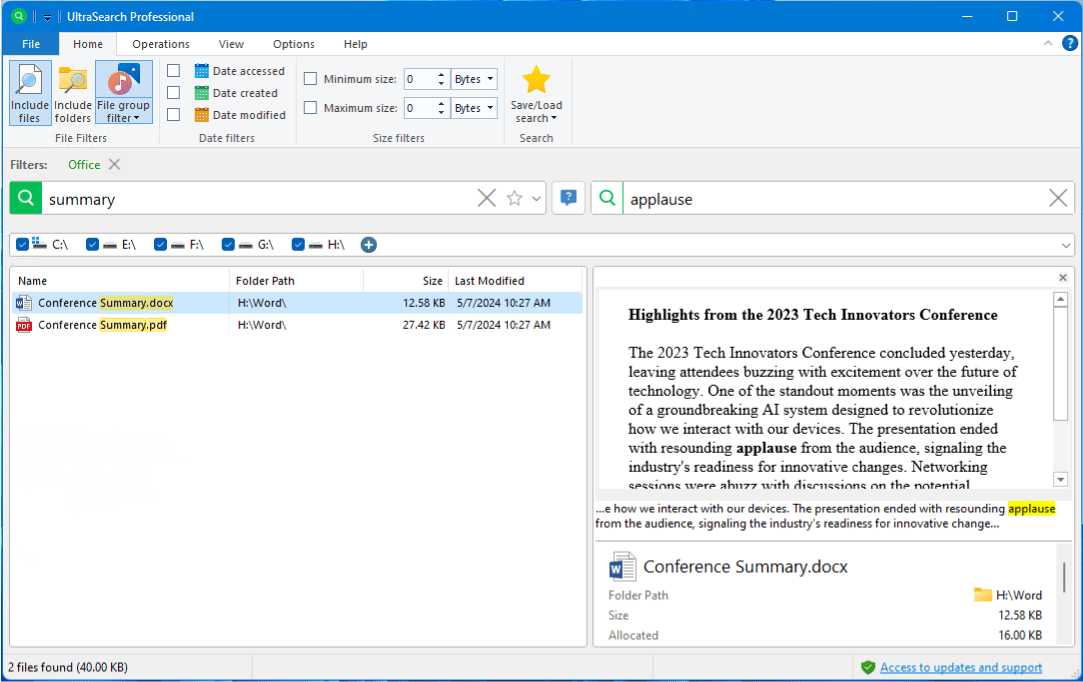
Searching file contents requires more computing power, so it can take longer. That's why it makes sense to set filters to limit the total number of possible target files.
By the way: Do you frequently search file contents, or do many other employees use UltraSearch? Then a central search index might be of interest to you.
Filter specifically and save time
With UltraSearch, you can quickly find the right file even in large amounts of data by refining your search with filters.
For example, you can filter specifically for certain file types, time periods, or file sizes. This allows you to exclude everything that is not currently relevant.
Show transcription
This video contains no audio (silent screen recording). The following description conveys what is shown on screen.
In UltraSearch Professional a search for “Review” returns 224 files (558.48 MB) of various types, including “Product Review.mp4” and “Review Process.pdf”.
The “File types” selector is opened (Audio, Compressed Files, Excel, Images, Internet, MS Word, Office, PDF, PowerPoint, Software Development, Text, Videos) and “PDF” is chosen.
The “PDF” filter narrows the results to 33 PDF files (366.99 MB), such as “Review Process.pdf” and “Theater Review.pdf”.
Example:
Are you looking for an Excel file that was updated last week?
Select the file type Excel files and the time period Last 7 days, and the list of results will be much clearer.
You can see active filters at any time at the top of the filter bar and remove them by clicking on the small X.
Tip:
Try the input help. This helps you define more complex searches.
Show transcription
This video contains no audio (silent screen recording). The following description conveys what is shown on screen.
It shows the “Input help” assistant of UltraSearch Professional, with sections for file name, file extension, file type, creator, file date, and file content.
“ULS Onboarding” is entered in the “Contains text” field, the file type is set to “MS Word”, and a period is chosen via “Date modified” (options include Today, Yesterday, This week, Last month, This year).
“Execute” builds the query “ULS Onboarding filetype: MS Word modified: >= 01.11.2025”; one Word document is found (“ULS Onboarding Routen und Inhalte …”, 487.55 KB).
Experts can also use the integrated search syntax and regular expressions. More information on this can be found further down in this article.
Specify where to search
By default, UltraSearch searches in locations you use frequently, such as your documents, desktop, or project folders.
This is perfectly adequate for many searches. But sometimes you know exactly where a file might be located or want to include a specific storage location.
In this case, you can specify your own search targets or add additional locations, such as network drives or external drives.
Show transcription
This video contains no audio (silent screen recording). The following description conveys what is shown on screen.
It shows the “Search location selection” dialog (“Select a search location”) of UltraSearch Professional, with the categories Suggested, Drives, Directory, SharePoint, Google Drive, and WebDAV.
Available locations include “Local Disk (C:)”, network shares on the server “FileSrv2019” (Install, Releases, Temp, Dokumente), and “OneDrive – JAM Software GmbH”. The “Drives” view shows total size, free space, and percent free.
“OneDrive – JAM Software GmbH” is selected, its folders are browsed, and “Confirm selection” adds the location as an additional search path.
UltraSearch can also search SharePoint and Google Drive paths. To do this, log in with your account via the UltraSearch interface.
In certain cases, your IT administration must first make preparations in Azure Active Directory. Your IT administration can find more information about Azure AD configuration in our help section.
Open, move, rename results, and more
UltraSearch is not just for searching. You can also continue working with the files you find directly, just like in Windows Explorer.
This means: double-click to open, right-click to edit, and move or copy files. Just like in Windows Explorer.
Show transcription
This video contains no audio (silent screen recording). The following description conveys what is shown on screen.
In UltraSearch Professional a search for “Logo JAM” finds 82 objects (17.30 MB) via the central index (“via DataCentral”) — various JAM logo files such as “JAM Software Logo 300dpi.jpg”.
Three files (82.42 KB) are selected and dragged into a Windows Explorer folder (Desktop › temp › bin).
A copy dialog shows the progress (“3 items being copied …”); afterwards the three files are in the target folder.
UltraSearch is particularly helpful when you are working with many files at once.
With its "file operations," UltraSearch offers many options for copying, moving, deleting, or archiving selected files.
There are also some expert options available here that help you preserve timestamps, maintain directory structures, or log an action.
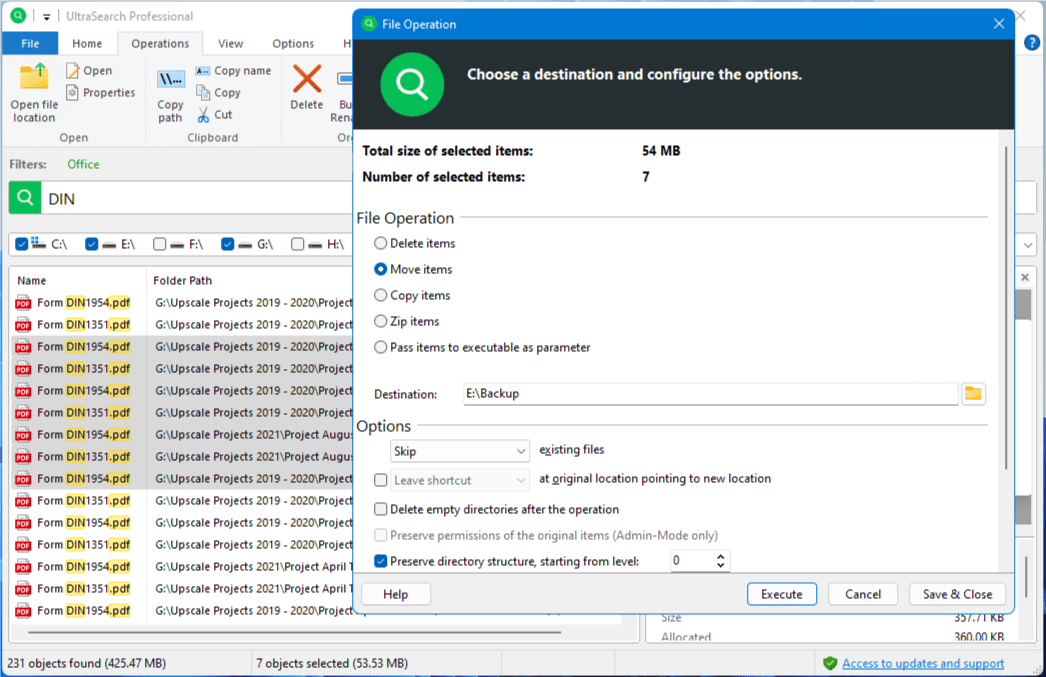
Another important feature is bulk renaming. This allows you to rename all selected files at once. You can set many rules for this and see the result in a preview.
Show transcription
This video contains no audio (silent screen recording). The following description conveys what is shown on screen.
In UltraSearch Professional a search for “Logo JAM” is run and three files are selected.
The “Bulk Rename” dialog (“Rename multiple elements at once”) is opened. The available rule types are Replace, Insert, Serialize, Delete, and Uppercase/Lowercase.
An “Insert” rule is created that prepends the prefix “Old_”; the preview shows the new names, e.g. “Old_JAM Software Logo 103x52.bmp”.
After “Execute”, UltraSearch reports “3 of 3 items were renamed”.
Tip: If you regularly work with many similar files, for example in marketing, sales, or project management, you can save a lot of time with bulk editing.
List or thumbnails? When each view is useful
UltraSearch can also switch search results between a list view and a thumbnail view, as you would expect from Windows Explorer.
The list view provides detailed insights into file properties. You can also expand these columns as desired.
Show transcription
This video contains no audio (silent screen recording). The following description conveys what is shown on screen.
In UltraSearch Professional a search for “Logo JAM” is run (7 objects, 249.29 KB).
The results columns are customized: via the column menu or the “Select visible columns” dialog, columns can be shown or hidden — besides Name, Folder Path, Size, and Last Modified, e.g. Type, Owner, Permissions, MD5 Checksum, or Width.
An image “Width” column is added; the list then shows the image widths in pixels (e.g. 1000, 700, and 103 pixels). Columns can also be auto-fit (“Size Column to Fit”).
The thumbnail view, on the other hand, provides a quick overview of the file contents.
As you are used to from Windows Explorer, this works for image files as well as PDFs, Office documents, and more.
For experts: Search syntax and regular expressions
Experienced users can add the finishing touches to their workflow with search syntax and regular expressions:
This allows you to perform even complex searches, for example for files with specific name patterns, file extensions, or combinations of terms.
Examples of search syntax
*.pdf→ finds all PDF filesOffer AND 2025→ shows only files that contain both terms"Project X"→ exact phrase
Where regular expressions help
Regular expressions work for both file name searches and file content searches. A regular expression in UltraSearch is preceded by a tilde ~.
- Search by specific word beginnings
- Search by number patterns in file names
- Search by optional terms
Want more information? The UltraSearch help section contains detailed chapters with many examples of search syntax and regular expressions:
Support and further help
We hope this article has helped you get started with UltraSearch.
You can find more explanatory articles and helpful tips in our knowledge base and in the UltraSearch product help.
Did this article help you? We would love to hear your feedback at ultrasearch@jam-software.com .
Good luck with UltraSearch!