

Make DataCentral Your Central Search Index
Make UltraSearch more efficient: With SpaceObServer DataCentral we provide you a central search index that scales, conserves your resources and can be queried by UltraSearch at lightning speed.
Show transcription
[On Screen: Title slide of the webinar: “Boost your team with UltraSearch + DataCentral – Find files in the company network in seconds”, presented by Joachim Mada, JAM Software.]
Welcome to our webinar on UltraSearch and DataCentral, and thank you very much for your interest in our updated solution. My name is Joachim Mada. I'm here as the product manager for our file and disk space management products.
[On Screen: Slide “Why your teams need UltraSearch”, listing the key benefits of the file search.]
So, first of all, why your teams need UltraSearch. UltraSearch is a powerful file search for teams who find the Windows search too slow. You can find files and file content on large volumes within seconds. Extensive filtering options – for example by file type, modification date or file size – can be applied as well. You can search across multiple drives simultaneously, no matter whether they are local, network or cloud drives.
So this is the universal search for your organization, currently supporting SharePoint Online, OneDrive, Microsoft 365 and soon also Google Drive and Exchange Online. It includes useful actions for follow-up work: for example, it has an in-app preview for the files, it can export the results to an Excel or PDF file, it has a bulk renamer, the ability to copy and move files or to archive them to a ZIP file, and of course to delete files if you want to do some cleanup.
[On Screen: Slide “What are the benefits of DataCentral?”, explaining the index-based network search.]
That was the UltraSearch part. We now come to DataCentral and its advantages. The new feature and key to the high search speed is an index-based network search with DataCentral. It can find content in files up to a thousand times faster than without an index. Results appear within one to three seconds after you have typed your search, because there is no need to scan all files from start to end to find the search word in them. The index already knows which word appears in which file, like the index you find at the end of non-fiction books.
This also reduces the network and server load when used across teams, because files are indexed only once instead of being searched every time, and it is possible to combine many other filters like file size, file type or modification date, which are indexed as well. So this solution integrates well into a hybrid IT storage environment, which combines the advantages of cloud storage and local network drives. And of course, access permissions and data security are respected to comply with information-security best practices. The solution fully integrates with NTFS permissions and Active Directory.
[On Screen: Slide “What is DataCentral in detail?” with an architecture diagram: the server side with the DataCentral service scanning the storage system into a full-text and metadata index, and the client side with UltraSearch sending queries over the network.]
So what is DataCentral in detail? It is a server-based extension for UltraSearch, based on our established product SpaceObServer. It creates and manages a central full-text and metadata index. The full-text index is stored in the file system, and the metadata index is stored in a SQL database. DataCentral runs 100% on premises, so none of your data ever leaves your company. It operates as a Windows service in the background, to which UltraSearch connects via the network.
This image illustrates how it works. In the upper part you see the server side with the DataCentral service. The service scans the storage system and puts the found data into a full-text and metadata index. UltraSearch is running on the client side, on the clients of your employees, of your team – this is the lower part of the image. UltraSearch sends the queries entered by the users to DataCentral, which looks them up in the index and returns the result to the clients.
[On Screen: The presenter switches from the slides to a live demonstration of UltraSearch on the Windows desktop.]
I will now show you a quick demonstration of UltraSearch in action. UltraSearch can wait in the background and can be activated through a configurable hotkey. By default, this hotkey is pressing the Control key twice. You can now hear me doing it, and as you see, UltraSearch appears immediately.
[On Screen: The UltraSearch window, showing the suggested search paths derived from the user's recently used files, each with a checkbox.]
An important question now is which drives and paths are searched. UltraSearch automatically determines search paths based on the recently used files of the user, and it collects them here in the suggested paths. The idea is that users should reach their goal with the first search, without any configuration needed, which we think is important for the acceptance and frequent use of the tool. The suggested paths adapt over time, and unwanted paths can be deactivated using the checkboxes here. Of course, other paths can be added as well.
[On Screen: A search for the term “SEPA” in a network drive; matching file names appear instantly with the search phrase highlighted.]
We are now going to search our network drive. I'll search for files containing the name SEPA – SEPA is a German and European payment standard. And as you have seen, the results appear immediately; I didn't need to press any key. This is the search-as-you-type approach. The search phrase is highlighted in the file names where it is found, for easy recognition of the search result.
What you can do now is, for example, to decide whether you want to find files or folders only, or both. We now stick to the files, and we can apply filters. For example, if I know I'm looking for a Word file, I can switch to MS Word, and now I just get MS Word files that have the search phrase in their name. I can now additionally apply more filters, for example last modified date. I want to look for files modified last year, and now the search results grow smaller. With one more filter I have the one remaining file here, which is the file I was looking for.
[On Screen: The content-search area of UltraSearch; a search for “Unicode” first in Word files (no result), then switched to PDF files.]
That was a search in the file name, and of course I can search the file content as well. This is done in this part of the application. We have now found no file containing the search phrase Unicode. Now I switch to PDF files instead of Word files to see if we find any PDF files containing Unicode. We now see 14 files were found containing that content.
[On Screen: A PDF file selected in the result list; its preview opens on the right side with the search phrase highlighted and navigation to the next occurrence.]
If I now click one of the files, for example this one, please note that the preview of the file opens on the right side. Here you can see the file content. The search phrase is highlighted within the preview, and you can advance or step to the next occurrence of the search phrase.
[On Screen: UltraSearch switched to thumbnail view, showing resizable thumbnails of the found PDF files, then of images.]
Besides this grid view or tabular view, UltraSearch also supports a thumbnail view. Here you can activate the thumbnail view; now we see thumbnails of the PDF files, and you can adjust their size. The thumbnail view is much more interesting if you are looking for images, so I'm now looking for screenshots, and I need to switch to images to find some. I removed the filter for last year, and now I see a couple of images here.
[On Screen: An image opened by double-click in the Windows Image Viewer; the preview pane on the right shows additional metadata such as the picture's dimensions.]
The found files are listed; a double-click opens them in the default application – in this case, the Windows Image Viewer – to see a larger view. Again, we have the preview on the right side, and under this part we also have some additional metadata shown, for example the dimensions of the picture.
[On Screen: Back in the grid view, a “Dimensions” column is added from the Images column group; about 250 columns are available.]
I'll now switch back to the grid view using this shortcut here. And I would like to demonstrate that information like the dimensions can also be shown in the columns. We can add more columns here – about 250 columns are supported. I now go to Images and choose Dimensions, and now you'll see the dimensions appear here in the extra column.
[On Screen: The results are exported to an Excel file; the folder paths and file names in the Excel file are clickable links.]
There are a couple of things I can now do with the found results. For example, I can export them to an Excel file. I will now do this and end up with an Excel file containing the information I just saw in the user interface, and of course the dimensions column is also included. Please notice, these folder paths as well as the file names are clickable – that means if you click here on the file name in the Excel file, it will be opened. It is useful for passing on information to team colleagues.
[On Screen: Slide about the rollout and deployment of DataCentral and UltraSearch.]
And I have some information about a rollout. On the server side, it takes about 20 to 60 minutes to install DataCentral and for the initial setup, not including the time for the first indexing – this time depends on the amount of data that is indexed. But this is just a one-time operation; it can take a couple of hours, but after that, UltraSearch DataCentral keeps the index up to date in the background.
The deployment of UltraSearch on a client is recommended to be done with a software distribution system; this can be done in less than a minute. A fully unattended installation is possible using well-documented command-line parameters. A manual installation is of course possible as well – consider about three minutes for this. We have good information about the rollout process available on our web server.
[On Screen: Slide “System requirements”, listing the minimum requirements for DataCentral and the supported SQL Server editions.]
Let's take a quick look at the system requirements, as these are frequently asked questions. The minimum operating system is Windows 10 or Windows Server 2016. DataCentral requires 8 GB of RAM and four CPU cores. The software requires about 500 MB of disk space. Additional disk space is needed for storing the index – approximately 1% of the data volume to be indexed, as a rule of thumb – and a SQL server is needed, either an existing one or a dedicated one installed along with DataCentral.
We currently support Microsoft SQL Server Express. It is free but comes with some performance limitations, and so we recommend using it for test purposes and for smaller use cases only. Our software comes with a one-click installer for Microsoft SQL Server Express, which downloads and installs the Express edition. The Microsoft SQL Server Standard edition is recommended and is available as a runtime edition for a cheap price in our store. The runtime edition is a special license from Microsoft and is bound to be used with DataCentral and SpaceObServer only.
Our indexer supports all common office, text, and email formats. It may happen that certain exotic formats are not yet supported; in this case, feel free to contact us, and we'll see what we can do to support the file formats. UltraSearch on the client side does not have any significant minimum requirements – it just needs Windows 10 to run.
How DataCentral Improves UltraSearch
This is how DataCentral improves the search with UltraSearch.

UltraSearch
with DataCentral
|

UltraSearch
without DataCentral
|
|
|---|---|---|
Licensing |
1x UltraSearch per user & 1x DataCentral per site |
1x UltraSearch per user |
Search method for file contents |
Index-based | File-by-file |
Optimized for use in companies |
Unlimited users | With less than 50 users |
Resource requirements |
Low, due to efficient search index | High, due to local processing |
Scalability |
High | Limited, depending on individual resources |



Try For Free Now
Want to try UltraSearch with DataCentral for yourself? We offer a free 30-day trial. Check it out!
What Are The Benefits of UltraSearch with DataCentral?

Extremely fast searches in file content
DataCentral continuously enriches its full-text index with selected storage data in the background.
So file content is structured in the index and UltraSearch can find it at lightning speed.

Many users, low network load
DataCentral shifts the load of individual search queries from your network to the central search index.
Any number of users can use UltraSearch without burdening your corporate resources.

Compliance & GDPR
DataCentral runs as an on-premises service directly on your own system and does not require any cloud services for support.
You retain full control of your data!

Easy to set up, ready to go
Quickly set up, DataCentral runs unnoticed in the background.
UltraSearch immediately recognizes an existing search index in your network and uses it automatically - your staff won't need your helpdesk.
How Does DataCentral Work?
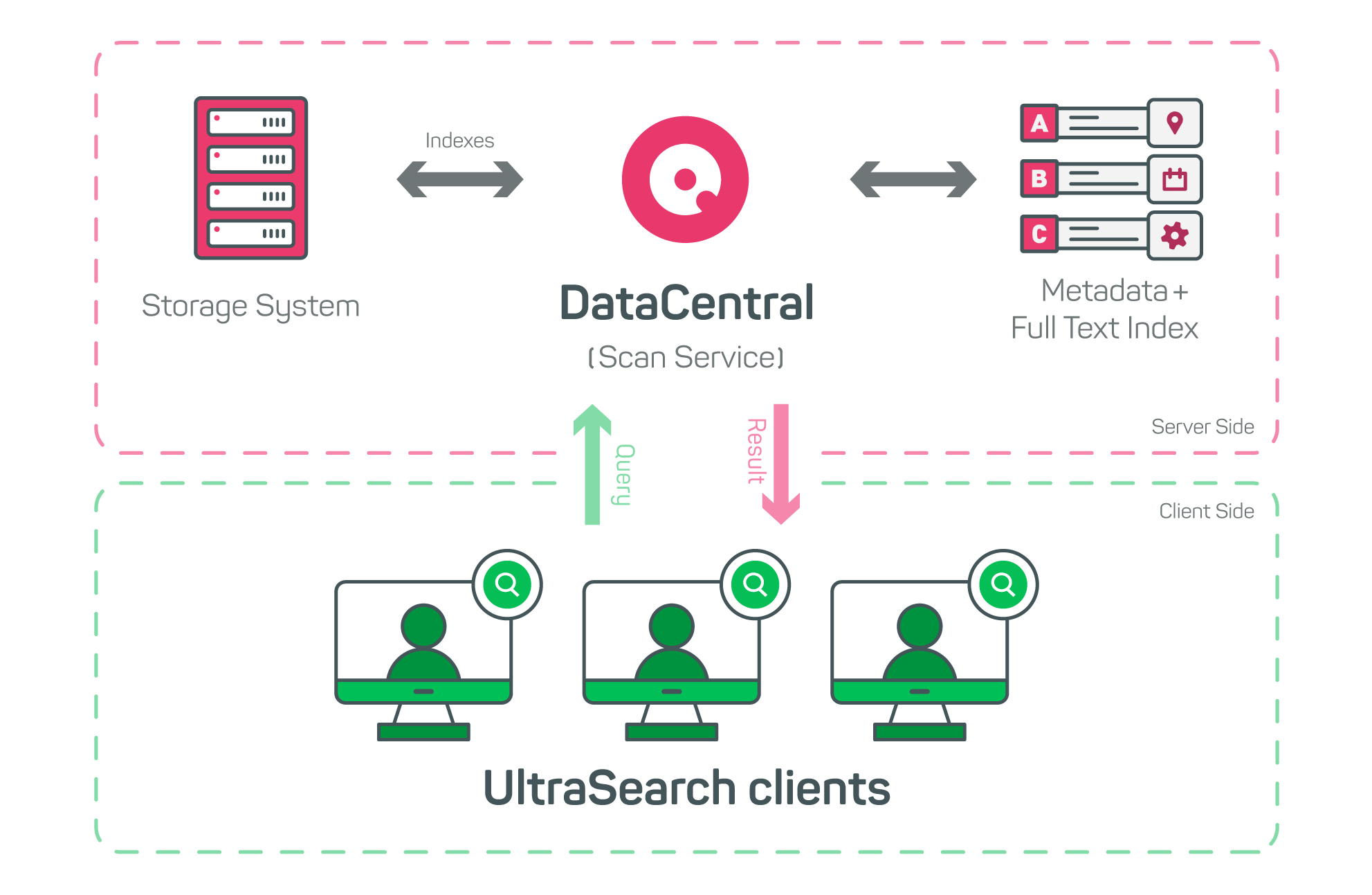
SpaceObServer DataCentral creates and updates a full-text index of your storage as a background service, storing both metadata and file content in an on-premises database.
You can define which storage systems to index and schedule when and how often DataCentral indexes your data.
With the DataCentral search index set up, UltraSearch allows your staff to find information in seconds, regardless of where the data is located.
Frequently Asked Questions
What is SpaceObServer DataCentral?
SpaceObServer DataCentral is a centralized search index for your data that includes both metadata and file content and can be searched with UltraSearch.
A background service creates and updates this index regularly to ensure that all relevant data is up to date, while the solution is scalable and resource-efficient.
In this way, SpaceObServer DataCentral enables lightning-fast searches for information, regardless of how many users are searching at the same time or where the data is stored.
How is DataCentral set up?
DataCentral is centrally deployed and configured on a Windows server. Alternatively, you can deploy DataCentral in a virtualization environment and index storage over the network instead of running it directly on the file server.
A supplied system service runs in the background and updates the data in the index.
How does DataCentral update the data in the search index?
DataCentral updates the data in the central search index according to an individually defined schedule. You can specify exactly how often and on which days the reindexing should take place.
For maximum topicality, you can set up a daily update of the index at 3 a.m., for example. Alternatively, weekly or even longer intervals are also possible, depending on requirements.
Does DataCentral transfer sensitive data?
No, DataCentral does not transfer any sensitive data out of your company network. All data is stored in an on-premises database on your premises.
No cloud services are required or used when using DataCentral.
Can SpaceObServer Enterprise also provide a search index for UltraSearch?
Yes, UltraSearch can also use the central search index of SpaceObServer Enterprise to retrieve information quickly and resource-efficiently.
We recommend SpaceObServer Enterprise above all if, in addition to a search index for UltraSearch, you are also interested in continuous monitoring, reporting or data lifecycle management of your company-wide storage.
If you need a less extensive solution, we recommend SpaceObServer DataCentral.