

Find Files Across Your Storages
With TreeSize you can search for files and folders on your hard drives, servers or even your entire network. Move, delete or archive your search results next. Then export your results in various formats for reporting tasks or further processing.
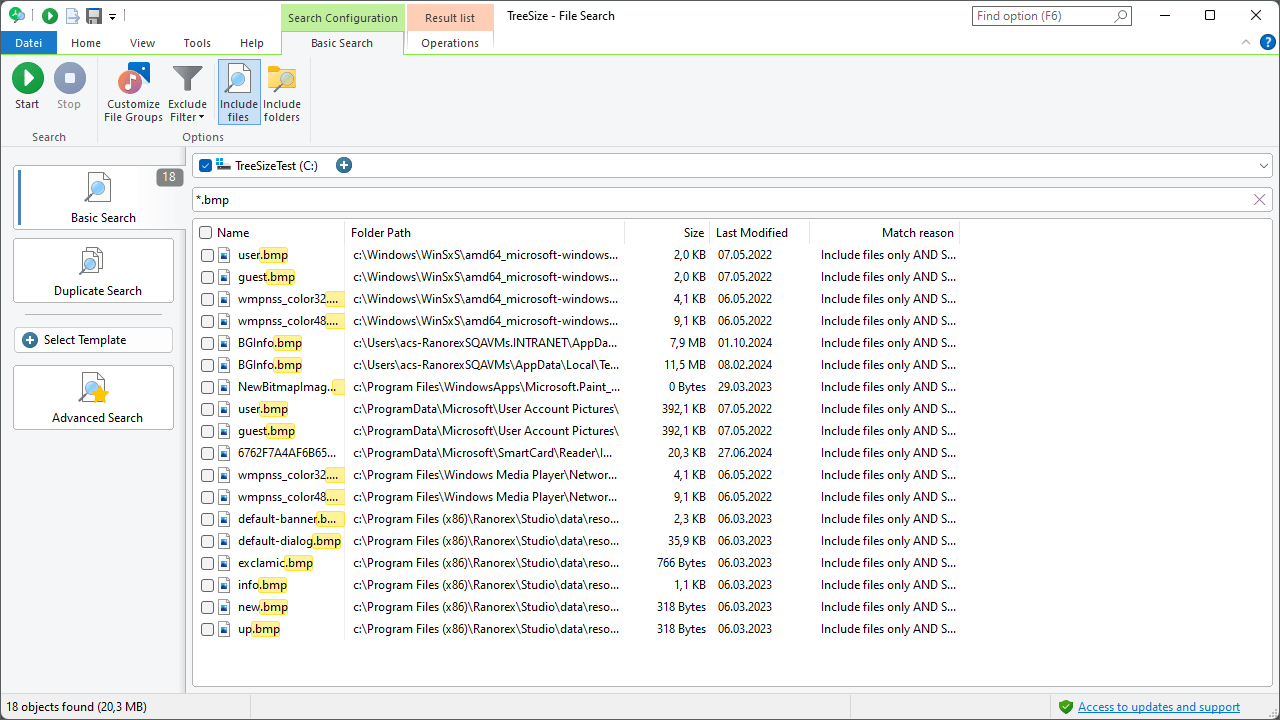
TreeSize can not only search by file name, but also limit the search to file extensions, file types or file contents. Catchy keywords make this possible without any mouse clicks.
How TreeSize's search syntax works
The TreeSize basic search syntax allows you to
- find file and folder names:
paint.exe - use wildcards in the search terms:
*.bmp - search for file extensions or file types:
type:Audio Files - use file properties as filters, like size filters:
size:>20 - perform a full text search in files:
content:My License - combine several search terms:
*.bmp OR *.jpg - exclude files and folders from the search:
name:!=readme - use regular expressions:
name:~[0-9] - use a short spelling of keywords for a faster search entry:
ext:bmp
For your advantage, search terms can be easily combined with "AND" or "OR" and file names can be excluded from the search using the search syntax. If you don't remember the full the file name anymore, you can use wildcards and regular expressions to improve your workflow.
If you are looking for specific video files, simply enter type:video files next to the file name. When searching for license documents you can, for example, start a full text search for "My license" in all Word files using extension:docx AND content:my license.
Search for duplicate files
TreeSize can search for duplicate files on your storages. Choose from different checksum methods and remove file duplicates right away!
Show transcription
[On Screen: Intro: “Remove Duplicates” with the TreeSize logo; two identical PDF icons, one marked with a red cross.]
Are you looking for duplicate files in your file system or on your server? TreeSize helps to clean up the space hogs of copied documents and duplicate files.
[On Screen: The TreeSize file search: in the “Predefined” group the duplicate file search is activated; target paths can include local drives, cloud storage services and a SharePoint server. The “Duplicate Files” ribbon offers a comparison method, the choice of files or folders, and filters (size, file type).]
To do this, open the TreeSize file search and activate the duplicate file search in the Predefined group. Now select one or more target paths for the scan. All drives mounted in Windows Explorer, as well as various cloud storage services, can be selected here. In the Duplicate Files ribbon, you can then select a comparison method and decide whether you want to search for duplicate files or folders. Filters help to include only files of a certain size or with certain file types. Click on Start, and TreeSize lists the duplicates found on all selected scan targets.
[On Screen: The results list groups the duplicates found; using the checkboxes or “Select all but newest”, the files to be deleted are selected.]
The results list can be sorted by various criteria, such as file size. Select the files you want to delete by hand using the checkboxes, or by selecting “Select all but newest”. You can also move or archive the selected items, for example. Already done.
[On Screen: The deduplication dialog: instead of deleting, duplicate files are replaced by NTFS hardlinks (with a note that this cannot be reverted automatically).]
Another case: a construction company has many different project folders on its file server, often containing the same relevant PDFs, which include norms and standards. These should not be deleted, but in total they occupy a lot of space. Instead of deleting duplicate files, you can deduplicate them with TreeSize. This replaces the duplicate files with NTFS hardlinks. So each duplicate file no longer consumes its own space, but points to the same location on the hard disk.
[On Screen: In the search filters, the comparison method “Name” is chosen and a name filter is set up, to find files with the same or a similar name across all data stores.]
Often, administrators are specifically looking for documents with the same name but different content — for example, when multiple versions of a documentation are distributed across different directories. TreeSize can find groups of files with the same or similar names across all data stores. To do this, select the comparison method “Name” and also set up a name filter. Now you can see where the document is located. Again, select “Select all but newest” and delete the remaining files. Already done.
Make a custom file search
You can also configure your own file search with TreeSize and tell TreeSize exactly which files you are looking for. The custom search allows you to perform multiple searches.
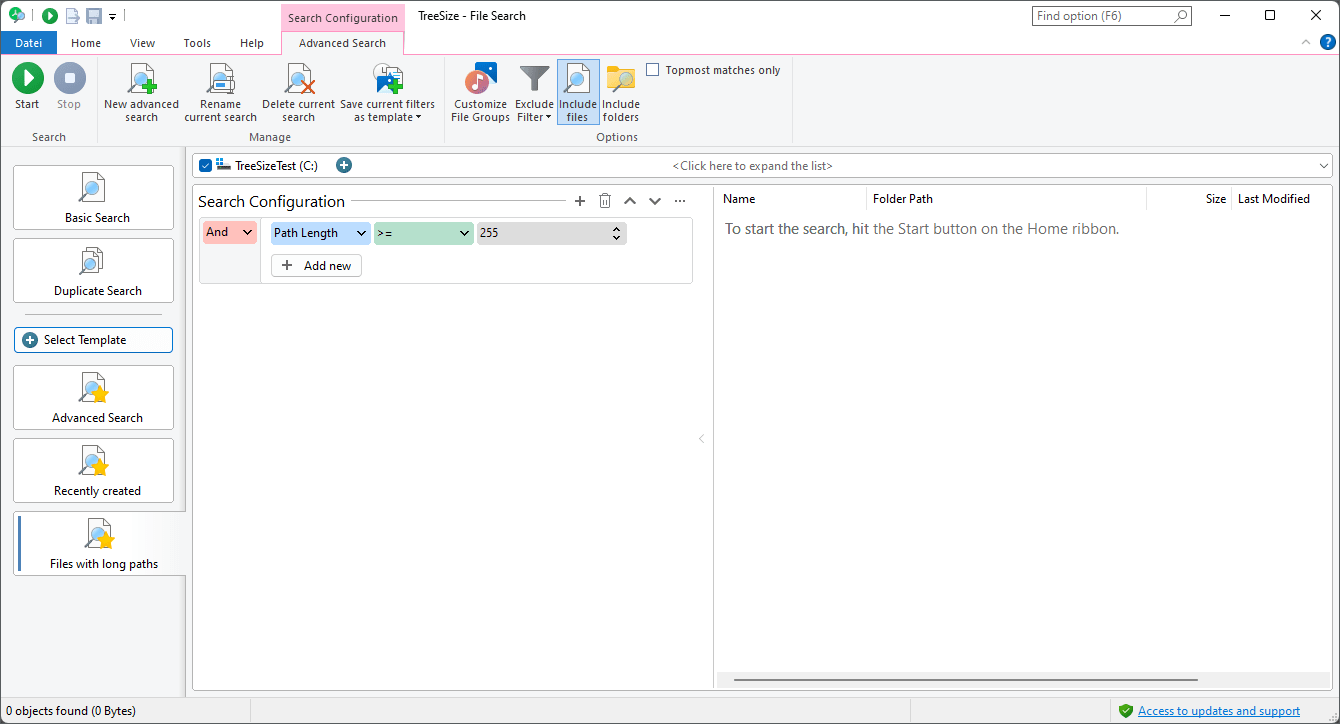
It's also possible to configure the presented metadata on the "View" ribbon bar. You can add any column of the Windows Explorer as well as various TreeSize specific metadata.
You can save all search settings in order to load them and repeat the search at a later point, or to automatize them using the built-in scheduler of TreeSize. To do so, define new search templates and save them permanently, or customize existing search templates.
Define your own search criteria
- Decide whether TreeSize shall exclude or include files matching your search.
- Filter files according to file owner or path and search the file content.
- Search for certain patterns (e.g. *.JPG) or file types (e.g. "Video files"), regular expressions or the entire file name.
- Find files that have been changed during a certain period of time.
- Set a maximum and/or minimum file size to find e.g. the largest files on a volume
- Set a maximum and/or minimum path length to find long paths.
- You can also use all Windows Explorer columns as search criteria, show them in the result list and export them.
- Search files that have a certain attribute set (e.g."Readonly" or "System") or have Alternate Data Streams associated.
- Have TreeSize search only files or only folders or both.
Search for access permissions
Do you have all permissions of your users in view? TreeSize can search for access permissions of your users in the Active Directory.
Searching for access permissions with TreeSize, you can regularly check for user-level access and correct it as needed. This makes it easy to keep an eye on your permissions' assignment.
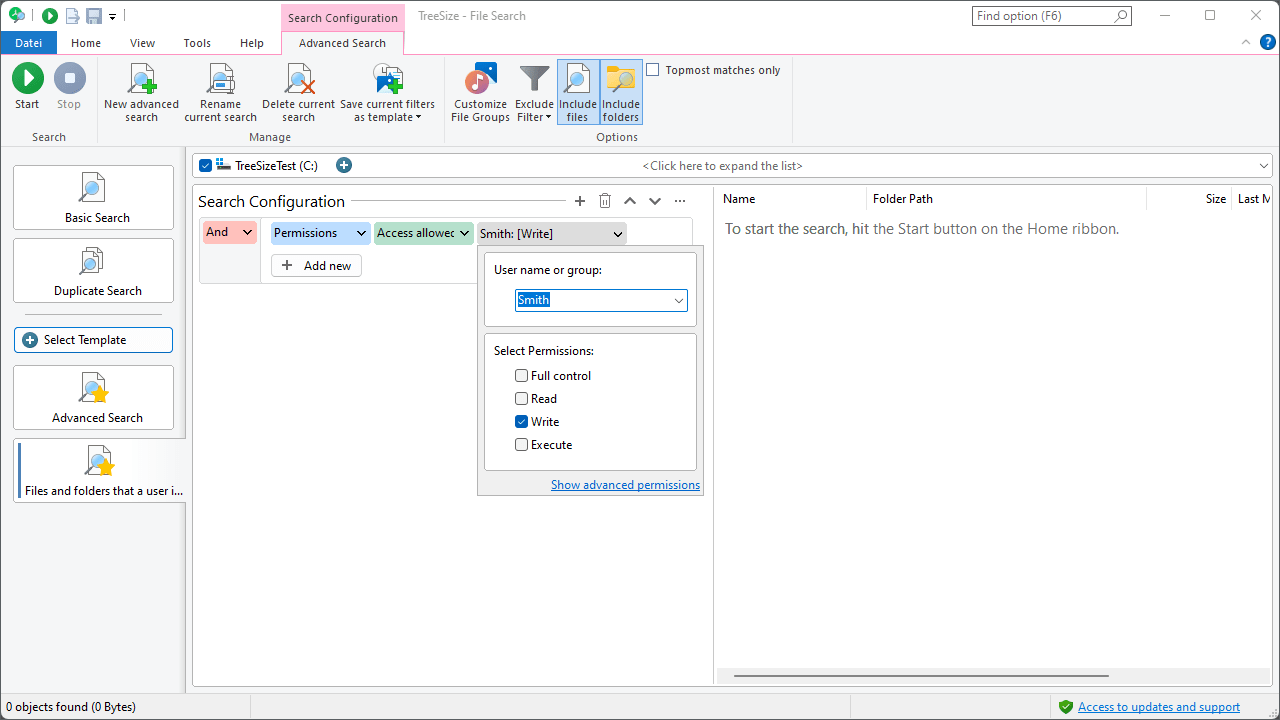
Select "Permissions" in the search filters and set here whether you want to search for a refunded or a denied permission. Next, select a username or user group from your Active Directory. Finally, you can specify the scope of access.
Archive, copy or move files
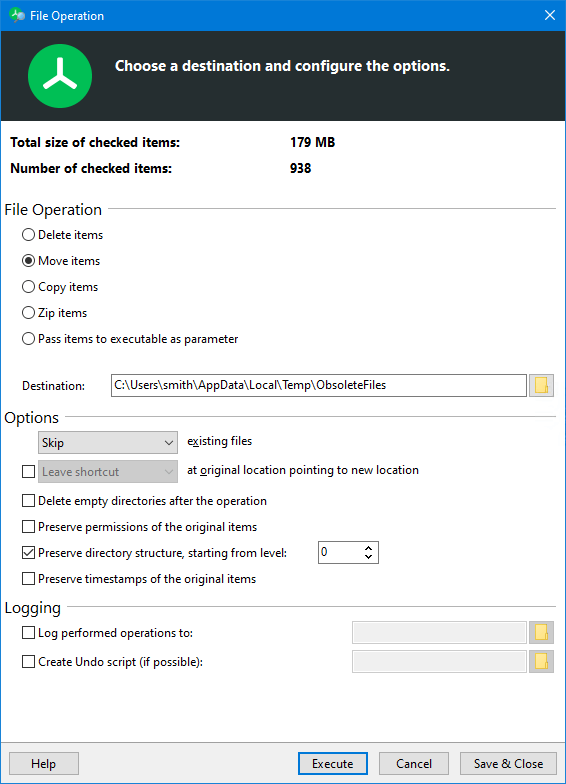
TreeSize does more than just search for files: You can perform various file operations such as archiving, moving, copying or deleting files from your search results list.
One edition for every need

TreeSize Personal