

Check on file details using the TreeSize Details View
The TreeSize Details View gives you detailed information of files and folders of your scan. Thanks to a Windows Explorer-like look, you find yourself in a well-known environment.
Besides all information you get from the Windows Explorer like, TreeSize provides you with extra detail columns. Add or remove columns with file information as you like, and export results. File properties can also serve as search filters in the TreeSize File Search.
Show transcription
[On Screen: Intro: the TreeSize Professional logo over an image of a hard disk, with the tagline “Create detail lists for files and add columns easily” and the on-screen title “Detailed file overview”.]
Do you want to report files and directories located in a specific place on your drive? TreeSize helps you export detailed file lists.
[On Screen: The TreeSize window: on the left the drive/folder tree, on the right tabs including Chart, Details, Extensions, Users, Age of Files and Top Files.]
First, select the drive or directory you want to scan. Then select the Details view. Here, similar to the Windows File Explorer, all files and folders are listed, in addition to the familiar columns such as file size or the date of the last change.
[On Screen: Detail columns can be sorted in ascending and descending order, as in Windows Explorer. A “Choose columns” dialog lists more than 40 available columns.]
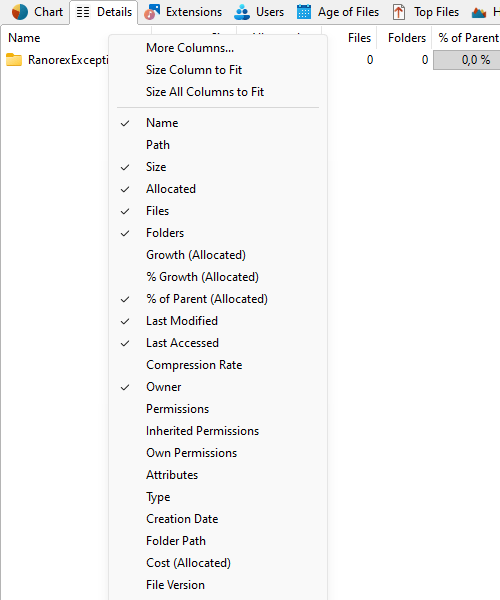
TreeSize offers more than 40 different pieces of additional information, for example the allocated space of a file in percent, or the number of files and directories and their average size. You can easily select and deselect columns by right-clicking on the header. You can also do this via the options. This way your list has only the information you need.
[On Screen: Example columns include allocated space, owner, and permissions.]
Have you included all the relevant information? Then export the file list to your desired format.
[On Screen: The export menu offers plain text, CSV, HTML, and PDF; a generated “Details Report.pdf” shows a TreeSize report with a per-file table (size, files, % of parent, last modified, owner).]
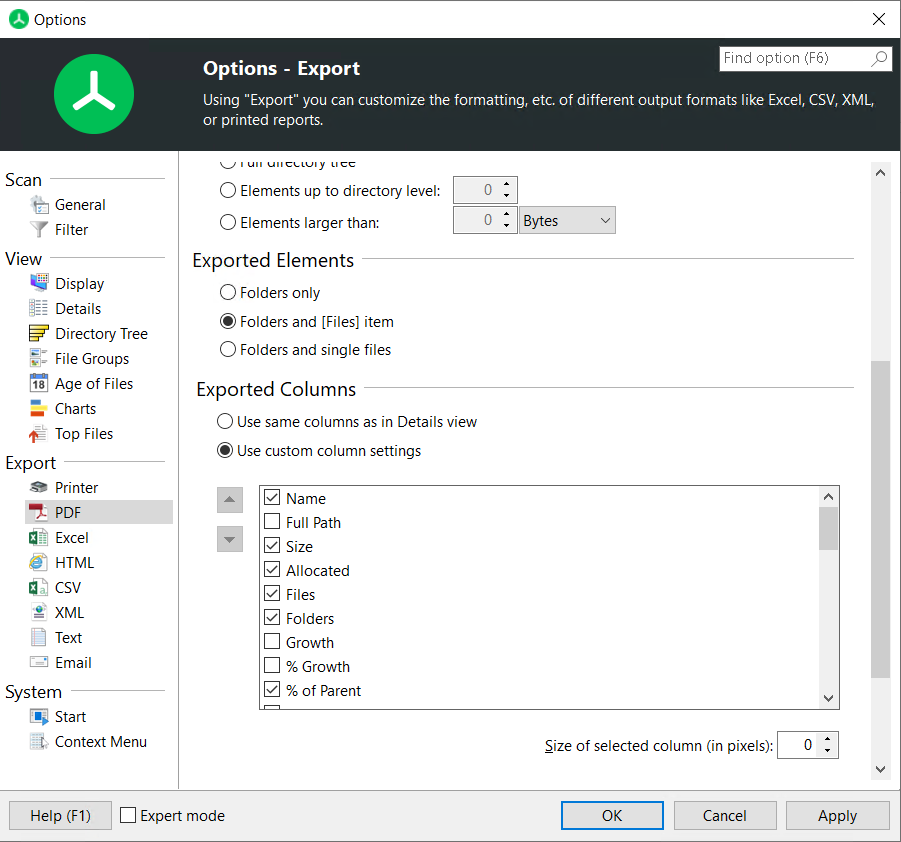
TreeSize supports Excel and CSV export as well as PDF, HTML, or even simple text export. All activated columns are included in the export by default. You can change that in the settings.
Do you want to add contextual information to your file list? Add file types, users, or file age to the columns.
[On Screen: The Extensions tab groups files by type (e.g. graphics, Office, container, video and system files), and the Age of Files tab shows a chart of the last-modified distribution (from one day up to more than two years).]
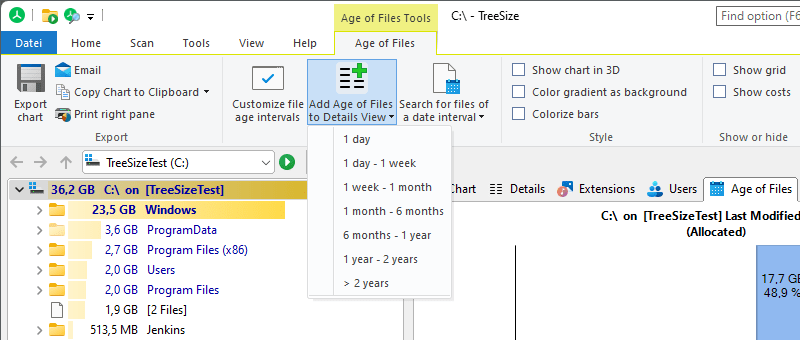
For example, click on Age of Files and select “Add File Age to Detail view” in the ribbon, then choose the interval “6 months to 1 year”. TreeSize will then show, in this new column, the file size of only those files that match the selected criterion. Then export as usual.
[On Screen: Closing screen with the address www.jam-software.com.]
Get more details by adding columns
Are you looking for extra details, the Windows Explorer does not provide? In the TreeSize details view, you can add 5 groups of new columns with further file or folder information as you like:
- Windowns File Explorer properties
- TreeSize file properties (more than 40)
- File types
- Age of files
- Users

Did you know? There is a difference between allocated and actual disk space we explain on our blog.
You can add more detailed information via the options dialog or by selecting the desired properties in the column list. Just right-click the header of the list.
Additionally, you can contextualize file details, adding file ages, users or file extensions as columns. To do so, click the "add to detail list" option in the corresponding ribbons. TreeSize automatically adds the desired meta information in the details columns.
Make use of file operations and export
TreeSize provides various details tools in the details context tab.

Besides operations like move/copy, deletion, copy to clipboard or copy path, there are comfort operations like:
Bulk Rename of files and folders

The TreeSize Bulk Rename lets you rename multiple files at once according to your specifications. Just select the files you want to rename in bulk and follow the instructions in the dialog.
Bulk Rename especially might come in handy when you have to prepare a whole bunch of files for SharePoint migration. We gave some tips for the use of TreeSize Bulk Rename on our blog, be sure to check it out!
Export file details

You can export the detailed list of your scan results including all selected details columns using the export option. This comes in handy, for example, when you have to create file reports for the management. Just select all items that you want to be part of the export.
TreeSize lets you export result lists for your reports into text files (.txt), HTML files (.htm), Rich Text Format (.rtf), Microsoft Excel (.xlsx), and Comma Separated Values (.csv).
Pro Tip: If you don't want all columns from the Details View to be part of the export, you can manually configure the export columns options in the settings.
Compress/Decompress

TreeSize supports NTFS compression. Select the files and folders from your result list you want to compress and click on "Compress" in the ribbon menu.
Same way around, you can decompress NTFS compressed files using the "Decompress" operation.
Try the TreeSize Detail View yourself
We think it's important to try TreeSize yourself before you make the decision to buy. That's why we provide a 30 days free trial of TreeSize, without registration!
Why not check it out?