

Easily Deduplicate Files
The TreeSize duplicate file search found a number of duplicates - what to do next?
Show transcription
[On Screen: Intro: “Remove Duplicates” with the TreeSize logo; two identical PDF icons, one marked with a red cross.]
Are you looking for duplicate files in your file system or on your server? TreeSize helps to clean up the space hogs of copied documents and duplicate files.
[On Screen: The TreeSize file search: in the “Predefined” group the duplicate file search is activated; target paths can include local drives, cloud storage services and a SharePoint server. The “Duplicate Files” ribbon offers a comparison method, the choice of files or folders, and filters (size, file type).]
To do this, open the TreeSize file search and activate the duplicate file search in the Predefined group. Now select one or more target paths for the scan. All drives mounted in Windows Explorer, as well as various cloud storage services, can be selected here. In the Duplicate Files ribbon, you can then select a comparison method and decide whether you want to search for duplicate files or folders. Filters help to include only files of a certain size or with certain file types. Click on Start, and TreeSize lists the duplicates found on all selected scan targets.
[On Screen: The results list groups the duplicates found; using the checkboxes or “Select all but newest”, the files to be deleted are selected.]
The results list can be sorted by various criteria, such as file size. Select the files you want to delete by hand using the checkboxes, or by selecting “Select all but newest”. You can also move or archive the selected items, for example. Already done.
[On Screen: The deduplication dialog: instead of deleting, duplicate files are replaced by NTFS hardlinks (with a note that this cannot be reverted automatically).]
Another case: a construction company has many different project folders on its file server, often containing the same relevant PDFs, which include norms and standards. These should not be deleted, but in total they occupy a lot of space. Instead of deleting duplicate files, you can deduplicate them with TreeSize. This replaces the duplicate files with NTFS hardlinks. So each duplicate file no longer consumes its own space, but points to the same location on the hard disk.
[On Screen: In the search filters, the comparison method “Name” is chosen and a name filter is set up, to find files with the same or a similar name across all data stores.]
Often, administrators are specifically looking for documents with the same name but different content — for example, when multiple versions of a documentation are distributed across different directories. TreeSize can find groups of files with the same or similar names across all data stores. To do this, select the comparison method “Name” and also set up a name filter. Now you can see where the document is located. Again, select “Select all but newest” and delete the remaining files. Already done.
In addition to move or delete duplicate files, TreeSize offers you to replace files with identical content using NTFS hard links: the deduplication feature. TreeSize will replace the selected duplicates by hard links that all point to the same physical data on your drive. Doing so, unlike similar tools, TreeSize will not report hard links as duplicates. This makes it more effizient to deduplicate your data without creating false positives
Since NTFS hard links can only be used for files on the same partition, TreeSize lets you decide whether you want to deduplicate files on different volumes using symbolic links or whether you want to ignore them.
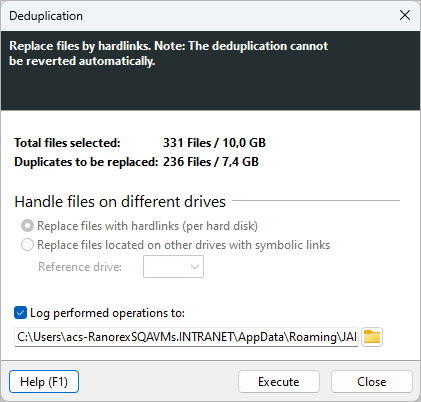
The Deduplication dialog will show you how many files you are going to deduplicate and how much disk space is reclaimed that way. It also allows you to easily define if and where a log file containing information about the performed operations is to be saved.
Duplicate searches and deduplications can be planned as scheduled tasks via an easy-to-use interface in the Professional Edition.
Duplicate Search Use Case: Construction Company
A construction company has a folder for each project that they are carrying out. Each project contains lots of PDFs with specifications and standards, many of them are used in various projects and so are true duplicates. Every month the company scans for such duplicates and replaces them with hardlinks. That way the company saves many gigabytes of disk space on their server. How? Find out on out Blog.
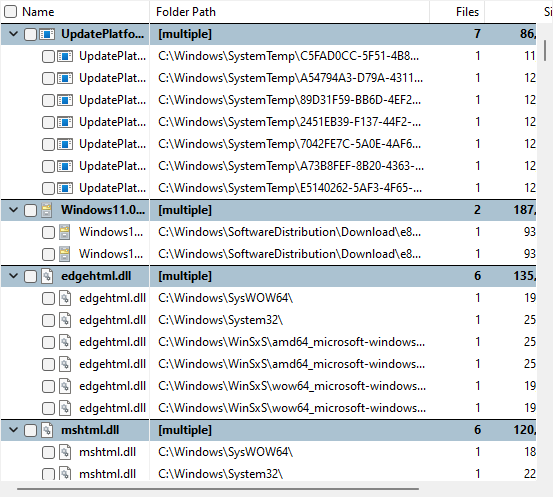
Are you eager to deduplicate? Try it for free!
With TreeSize, we offer free a 30-days trial. Scan your, for example, local system or network storage for duplicate files and remove them safely using TreeSize. Check it out!