

Template Management for SEPA payments
Setting up SEPA transactions or direct debits can be a time-consuming task. SEPA-Transfer offers an improved template management for recurring SEPA payments to boost up the process.
Add new templates manually and edit them. Let SEPA-Transfer create templates for you out of new SEPA transactions and SEPA direct debits. This can save a lot of time during your payment process, especially when you handle SEPA payments on regularly basis.
Show transcription
[On Screen: Opening with the “SEPA-Transfer” logo and the title “Buchungen mit praktischen Vorlagen verwalten” (Managing transactions with handy templates). Then the section heading “Buchungsvorlage anlegen” (Creating a transaction template).]
Do you regularly process SEPA credit transfers or SEPA direct debits? SEPA-Transfer stores your transactions in handy templates that you only need to recall the next time.
[On Screen: SEPA-Transfer Enterprise Edition with a transaction form (recipient, IBAN, BIC, reference, amount, SEPA Purpose Code). Caption: “Neue Vorlage automatisch aus Buchung generieren.” (Generate a new template automatically from a transaction.)]
Tick the “Save as template” checkbox when you create a new credit transfer or direct debit in SEPA-Transfer and enter the details. Or click “Save as template” in the ribbon menu once you have entered all the data.
[On Screen: The template list under “Extras” → “Vorlagen” (Templates). Caption: “Alle Vorlagen unter ‚Extras‘ → ‚Vorlagen‘ in übersichtlicher Liste.” (All templates in a clearly arranged list under Extras → Templates.)]
SEPA-Transfer immediately creates your transaction as a new template, which you will find under “Templates” on the “Extras” tab in a clearly arranged list.
[On Screen: Section heading “Vorlagen verwalten” (Managing templates) and the dialog for creating or editing a template. Caption: “Neue Vorlage händisch erstellen und bestehende bearbeiten oder löschen.” (Create a new template manually and edit or delete existing ones.)]
Here you can not only create a new booking manually, but also edit the existing ones, for example if the name of a recipient has changed. You can also simply delete templates here that you no longer need.
[On Screen: The search function above the template list. Caption: “Praktische Suchfunktion für Suche nach Name, IBAN oder Verwendungszweck.” (Handy search function to search by name, IBAN or reference.)]
Or use the search function to look specifically for a recipient name, an IBAN or a reference, for example. Once you have prepared everything, simply click “Create new bookings” – and SEPA-Transfer does the rest.
[On Screen: Section heading “Fixwerte für Buchungen” (Fixed values for transactions). Caption: “Nur feste Kontodaten aus der Vorlage übernehmen und Buchung individuell anpassen.” (Take only the fixed account data from the template and adjust the transaction individually.)]
The smart template management lends you a hand with your daily payment processing. Would you like to take only the account data from the template, such as the name or IBAN, but leave the amount and reference fields empty? Then tick the “Only take over account data” checkbox.
This way SEPA-Transfer helps you, for example, with regular transfers where only the amount or the invoice total changes. In the form, all fixed data is prepared for you, which keeps things clearly arranged.
[On Screen: Section heading “SEPA-Transfer denkt mit” (SEPA-Transfer thinks along). Caption: “SEPA-Transfer passt sich an Ihre Anwendungsfälle an und verhindert Dopplungen von Vorlagen.” (SEPA-Transfer adapts to your use cases and prevents duplicate templates.)]
SEPA-Transfer only creates new templates for IBANs that were previously unknown. So if, for example, you regularly book a payment to a particular recipient, SEPA-Transfer does not create a new template here just because the invoice number has changed.
But it also works the other way around: would you like to create several templates for one IBAN on purpose, for example if you handle SEPA payments in several contexts with the same recipient? The template management helps you with that too. Simply create the different templates under the same IBAN manually.
But you don’t have to worry about getting the fields mixed up, because SEPA-Transfer only saves templates that are not 100% identical to another one. Finally, you can use the search function to list all templates for a particular IBAN.
Try out the flexible template management for yourself – with our 30-day trial version of SEPA-Transfer. Download it for free now and get started right away, without registration.
Store predefined data about your payment partner, payment details, miscellaneous information as well as notes in the template. The name and the IBAN of the payment partner are required fields.
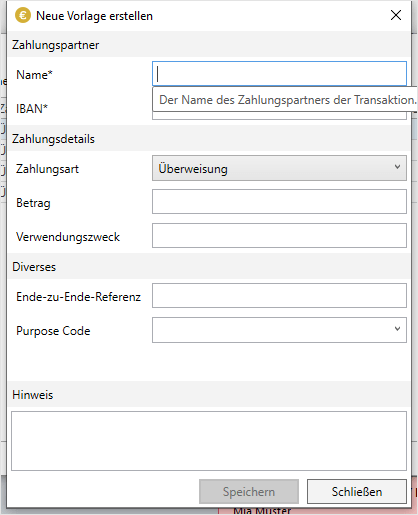
Where SEPA template management comes in handy
The template management helps you to complete recurring payment tasks way faster - for example, paying a supplier that delivers you monthly.
Set up a SEPA transaction and hit the checkbox "save as template" or create a template by hand in the "Extras" tab. SEPA-Transfer saves all information like the recipient's name, its IBAN, the payment amount or purpose code in a new template. Next time you need to pay for your delivery, boot up SEPA-Transfer and use the corresponding template.
By the way: SEPA-Transfer can accelerate your payment process with practical shortcuts. You can, for example, paste your payment data from the clipboard or use the import wizard to import data out of various file formats such as Excel or SEPA-XML.
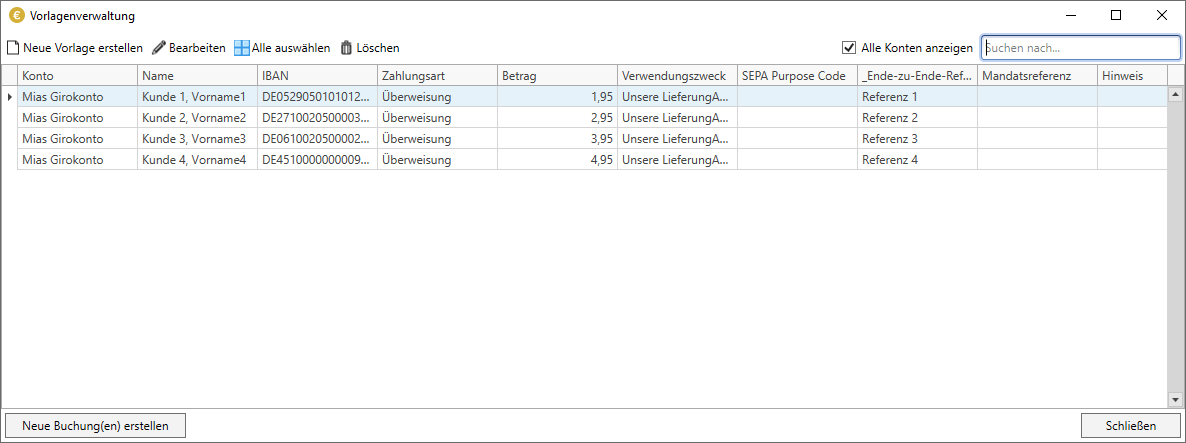
Have any payment details changed? Just open the template management, select the desired template and hit "edit".
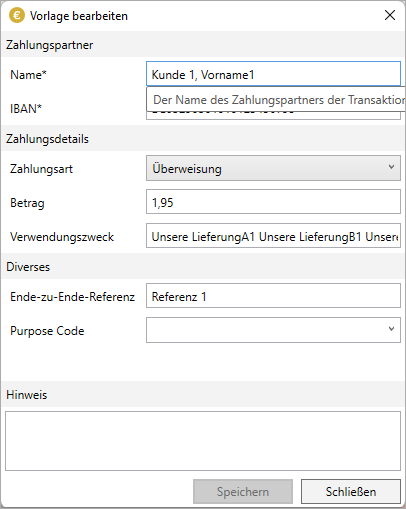
Here you can make changes to all payment information. Delete all templates that you don't need anymore.
Test SEPA-Transfer now
With SEPA-Transfer, we offer a flexible and easy-to-usage tool for your SEPA payment. Try it out yourself with our 30-days trial for SEPA-Transfer.