

What is a collective transfer?
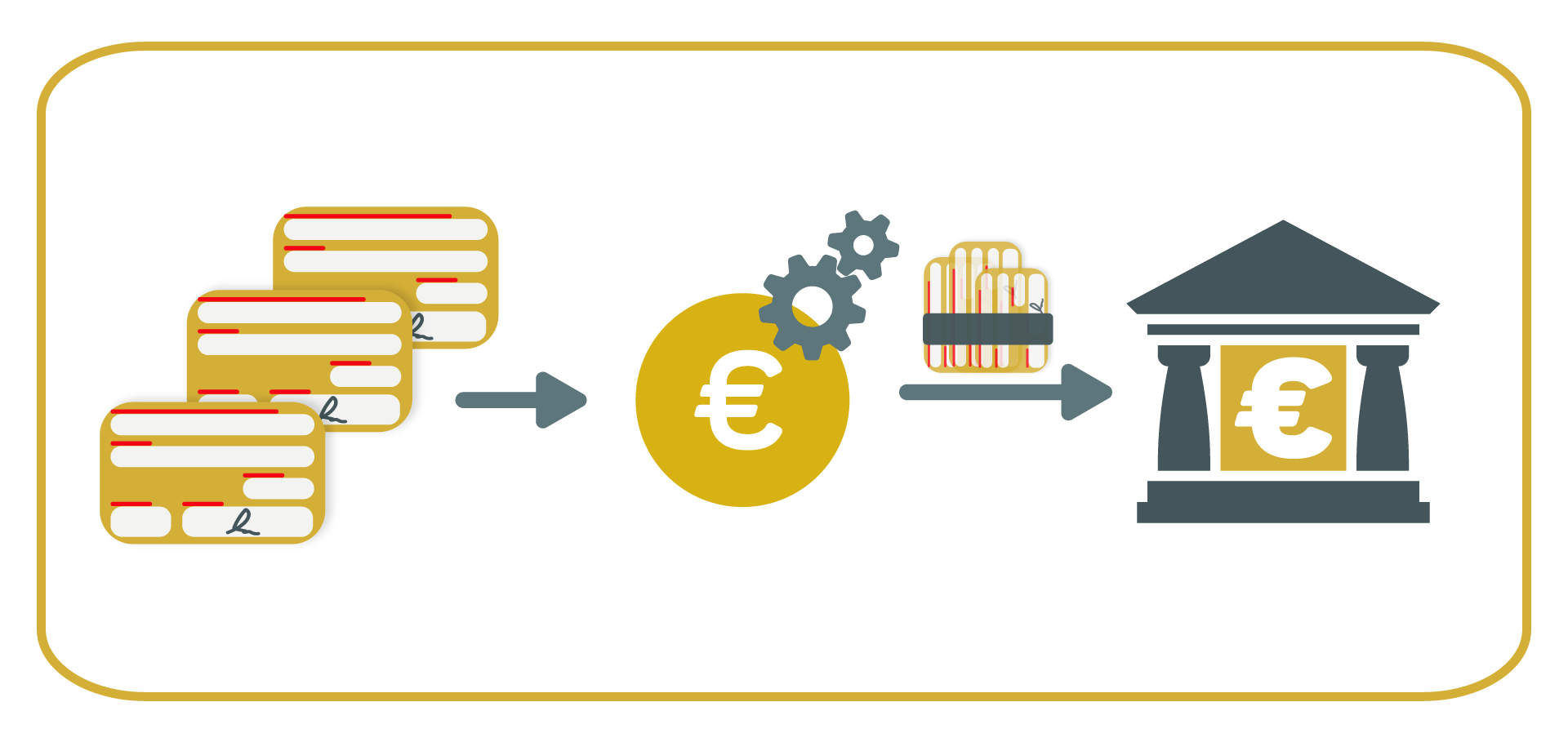
A collective transfer bundles several transfer orders into one collective order. In this way, the collected transfers can be added up and debited as a single item to the debtor's account.
Especially for regular payments, such as salary transfers, a collective transfer is practical and more cost-effective.
What does a collective transfer cost?
The costs for a collective transfer are determined by the respective executing credit institution and can vary.
Factors such as the amount of the transfer or the number of payees can influence the cost of a collective transfer. However, it is often a matter of amounts of a few euros per transfer.
In any case, it is cheaper to use a collective transfer for several payments than to make the entries individually. Your bank will thus only charge a fee for the collective order and not on each individual transaction. This way you save on accounting costs!
Show transcription
[On Screen: Intro: the SEPA-Transfer logo with the tagline “Transfer payment data: Excel to SEPA XML converter”.]
With SEPA-Transfer, you can easily convert payment data available in an Excel file into the SEPA XML format.
[On Screen: An Excel sheet named “Payment Data” with the columns Recipient, First name, Amount, IBAN, and Purpose.]
To do this, first prepare your payment data by naming the columns appropriately to make the import into SEPA-Transfer easier.
[On Screen: SEPA-Transfer Enterprise Edition with the Import/Export ribbon; the SEPA-Transfer Import Wizard opens with steps for file type, file path, transaction type, number of transactions, columns, error handling and start import.]
Next, open SEPA-Transfer. Select Import/Export. Click on Import File and select the desired Excel file. Select the booking type and the SEPA-Transfer account to be used. In the preview, you already get a first look at the payment data you are about to import into the program.
[On Screen: In the “Select columns” step, the Excel columns are mapped to SEPA fields such as Recipient, IBAN, BIC, Purpose, Amount, End-to-end ID, Execution date and SEPA Purpose Code, with a live data preview.]
Once you have named the columns appropriately, SEPA-Transfer takes care of the column assignment. Additional fields or errors can be easily adjusted via drop-down. Finally, click on “Execute Import” and all your payment data is stored in SEPA-Transfer.
[On Screen: The message “Import completed successfully” offers the options Send transactions, Export to SEPA XML file, and Edit transactions; the current bookings are shown in a list with an edit form (recipient, IBAN, BIC, amount, purpose, execution date).]
Check the individual entries in the current bookings for correctness. Then you can start exporting the payment data into the SEPA XML format.
[On Screen: The “Export to SEPA XML” dialog lists the transactions and offers options such as transaction type (bank transfer or direct debit), the output path and consolidation settings; a folder picker selects the output directory.]
Select Import/Export again and here “Create SEPA XML file”. Here you can select the open bookings you want to convert to SEPA, either all together or individually. Select the desired output directory and click OK. The conversion is already completed. You can now continue working with your payment data in SEPA XML format.
[On Screen: A “File export” dialog confirms that the transactions were exported successfully and offers to open the file, open the folder, or return to SEPA-Transfer; a wizard step handles invalid transactions.]
One more tip: right after the import, you can also export your payment data to the SEPA XML format with just one click. That way you save even more time with SEPA-Transfer.
[On Screen: Closing screen: “SEPA-Transfer — SEPA Payments With Just One Click”, with a “30 Days Free Trial” button.]
How do I make a collective transfer?
With the banking tool SEPA-Transfer you can easily make a collective transfer:
- Import an Excel or CSV document with your payment data.
- Assign the columns for IBAN, reason for payment, etc.
- Check all created transfers for correctness
- Forward the collective transfer to your bank (FinTS/HBCI compliant)
- Automate the process for recurring payments as needed
Try it out right now with our free trial!
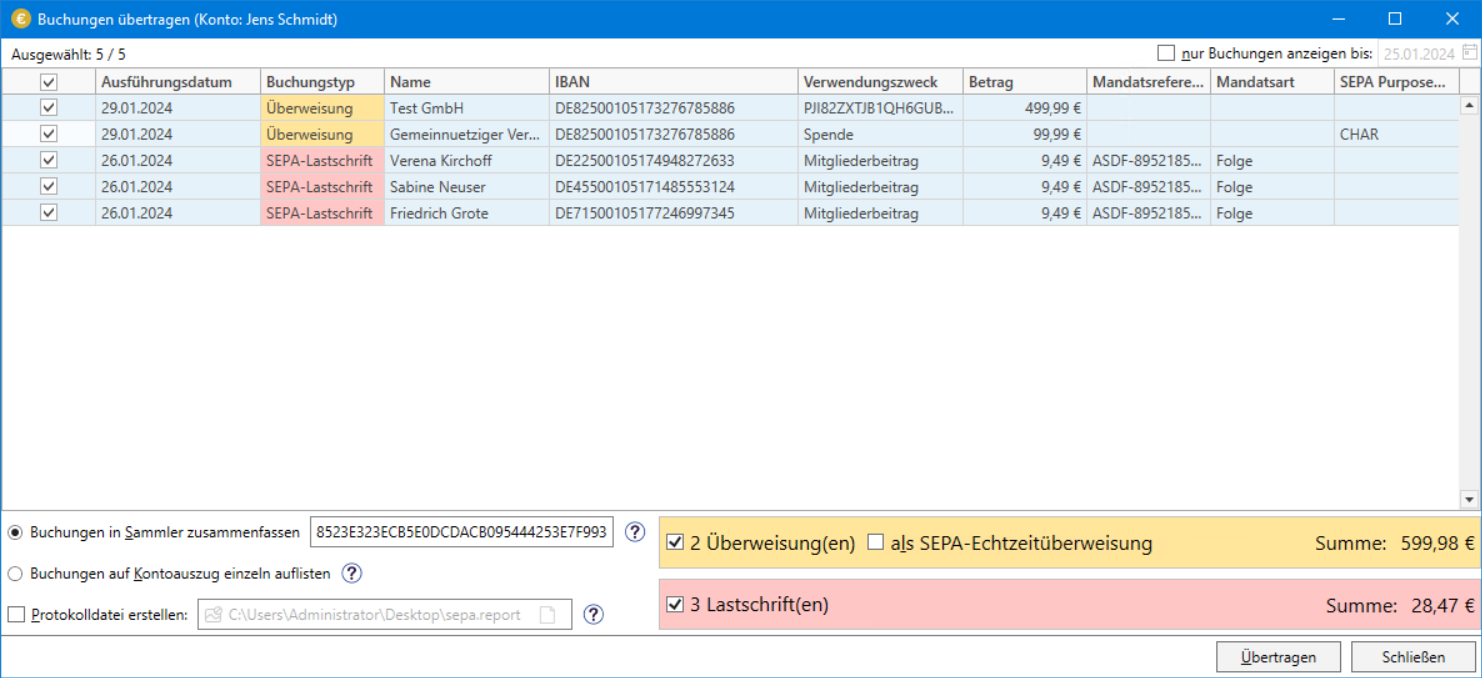
By the way: You don't have to log in for each new transaction or authorize the individual processes via PIN/TAN entry or chip card.
Try SEPA-Transfer for free
We offer a 30-days trial version for SEPA-Transfer Small Business Edition and SEPA-Transfer Enterprise Edition. Choose your tool and check it out!

SEPA-Transfer Small Business Edition