

Easy SEPA direct debits and transfers managing
Our tips for managing SEPA payments quick and easy.


The SEPA operation has assured the Single Euro Payments Area since February 2014. Since then, not only companies but also smaller organizations such as associations have had to use the SEPA payment procedure. This means that online banking is mandatory in the European Payments Area.
Regular payments require a great deal of effort if they are still processed manually. Online banking using SEPA offers great potential for reducing the number of manual processes involved in payment processing. With the help of a banking tool, regular payment processes in particular can be accelerated enormously and even automated. We show how.
Show transcription
[On Screen: Intro: the SEPA-Transfer logo with the tagline “Transfer payment data: Excel to SEPA XML converter”.]
With SEPA-Transfer, you can easily convert payment data available in an Excel file into the SEPA XML format.
[On Screen: An Excel sheet named “Payment Data” with the columns Recipient, First name, Amount, IBAN, and Purpose.]
To do this, first prepare your payment data by naming the columns appropriately to make the import into SEPA-Transfer easier.
[On Screen: SEPA-Transfer Enterprise Edition with the Import/Export ribbon; the SEPA-Transfer Import Wizard opens with steps for file type, file path, transaction type, number of transactions, columns, error handling and start import.]
Next, open SEPA-Transfer. Select Import/Export. Click on Import File and select the desired Excel file. Select the booking type and the SEPA-Transfer account to be used. In the preview, you already get a first look at the payment data you are about to import into the program.
[On Screen: In the “Select columns” step, the Excel columns are mapped to SEPA fields such as Recipient, IBAN, BIC, Purpose, Amount, End-to-end ID, Execution date and SEPA Purpose Code, with a live data preview.]
Once you have named the columns appropriately, SEPA-Transfer takes care of the column assignment. Additional fields or errors can be easily adjusted via drop-down. Finally, click on “Execute Import” and all your payment data is stored in SEPA-Transfer.
[On Screen: The message “Import completed successfully” offers the options Send transactions, Export to SEPA XML file, and Edit transactions; the current bookings are shown in a list with an edit form (recipient, IBAN, BIC, amount, purpose, execution date).]
Check the individual entries in the current bookings for correctness. Then you can start exporting the payment data into the SEPA XML format.
[On Screen: The “Export to SEPA XML” dialog lists the transactions and offers options such as transaction type (bank transfer or direct debit), the output path and consolidation settings; a folder picker selects the output directory.]
Select Import/Export again and here “Create SEPA XML file”. Here you can select the open bookings you want to convert to SEPA, either all together or individually. Select the desired output directory and click OK. The conversion is already completed. You can now continue working with your payment data in SEPA XML format.
[On Screen: A “File export” dialog confirms that the transactions were exported successfully and offers to open the file, open the folder, or return to SEPA-Transfer; a wizard step handles invalid transactions.]
One more tip: right after the import, you can also export your payment data to the SEPA XML format with just one click. That way you save even more time with SEPA-Transfer.
[On Screen: Closing screen: “SEPA-Transfer — SEPA Payments With Just One Click”, with a “30 Days Free Trial” button.]
How to save time with SEPA payments
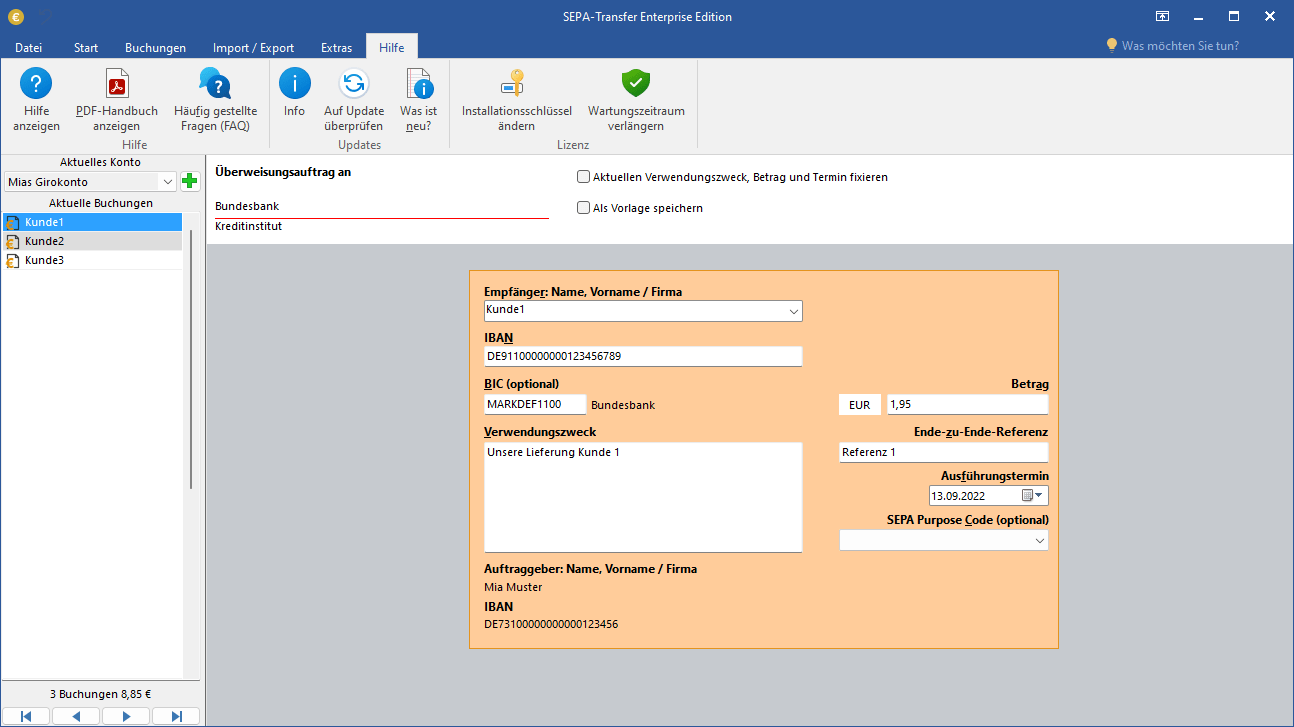
As a smaller organization, you don't have time for time-consuming payment processes occurring on a regular basis? With SEPA-Transfer, we can help you automate your payments securely. In doing so, SEPA-Transfer takes you by the hand from the very first step.
SEPA transfers can become a regular occurrence. Do you have to send an invoice to the same supplier once a month? Then maybe only the amount and the reason to pay changes - the IBAN remains the same. SEPA Transfer enables a convenient and secure transfer via the user interface.
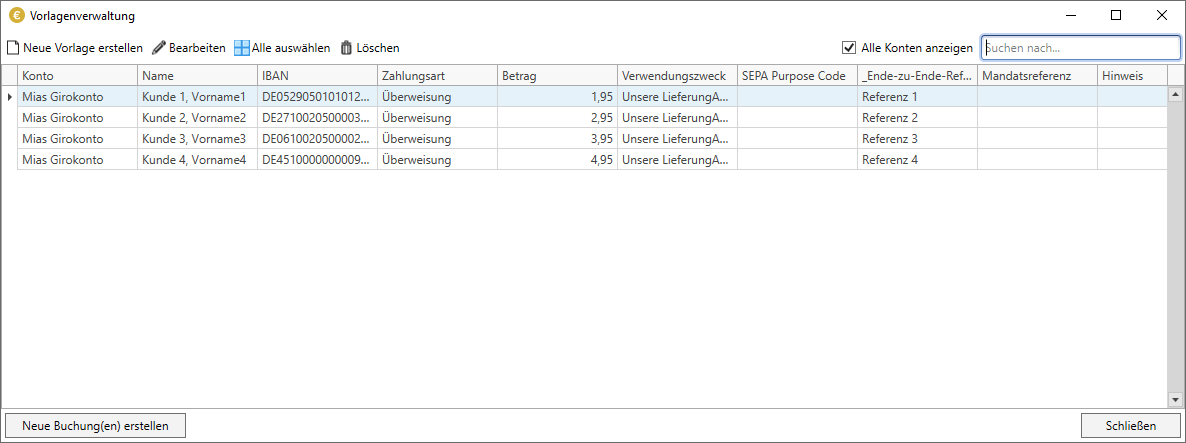
SEPA-Transfer generates a practical booking template from your transfer, you can find this in the template management. For your next payment, you only need to load the template and adjust the amount and reason for payment.
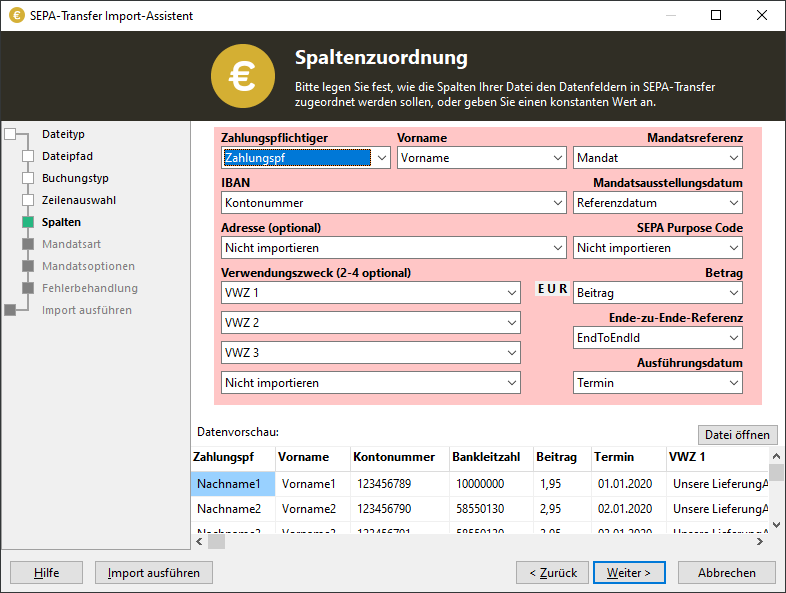
From Excel to SEPA - easy import of payment data
Do you organize your payment data in Excel spreadsheets, in a CSV or SEPA XML file? Import the data as a stack to SEPA-Transfer! To do this, click on "Import / Export" and select the Import Wizard here. Select your file type and booking type. SEPA-Transfer supports both SEPA transfers and SEPA direct debits, individually and in a bundle.
If you for instance want to pay out salaries to all your employees at the end of the month, it can be done very quickly with SEPA-Transfer. Select "Transfer orders" and ensure the correct line assignment. SEPA-Transfer recognizes the columns directly and arranges them into the transfer correctly. After the import you will see all transfers in a list. In doing so, pay attention to the special features of SEPA transfers.
Execute several direct debits at the same time
You can also create SEPA direct debits as a stack - for example, to collect funding contributions on a regular basis as the treasurer of a booster club. Import your payment data and then select "SEPA direct debit".
To collect a SEPA direct debit, a direct debit mandate is required, in short: SEPA mandate. The mandate reference uniquely identifies the SEPA mandate. SEPA-Transfer can also import or create this automatically. Simply complete the import and you will see all bookings in the usual view.
Securely forward SEPA payments to the bank in accordance with the HBCI/FinTS standard.
To ensure that SEPA payments can be transmitted securely, they are transferred using secure online banking standards such as HBCI or the more advanced FinTS standard. This security is provided via the familiar PIN/TAN procedure. With SEPA Transfer, you can forward payments to your bank in an HBCI/FinTS-secure manner.
SEPA-Transfer supports all common TAN procedures: mobile TAN, SmartTAN or chipTAN, as well as bank-specific TAN apps such as BestSign from Postbank.
Search your accounting history and find unusual payments
Retrieve your account transmissions via the user interface in SEPA-Transfer. Here you can narrow down the periods in a clear list and thus set an individual focus on specific payments.
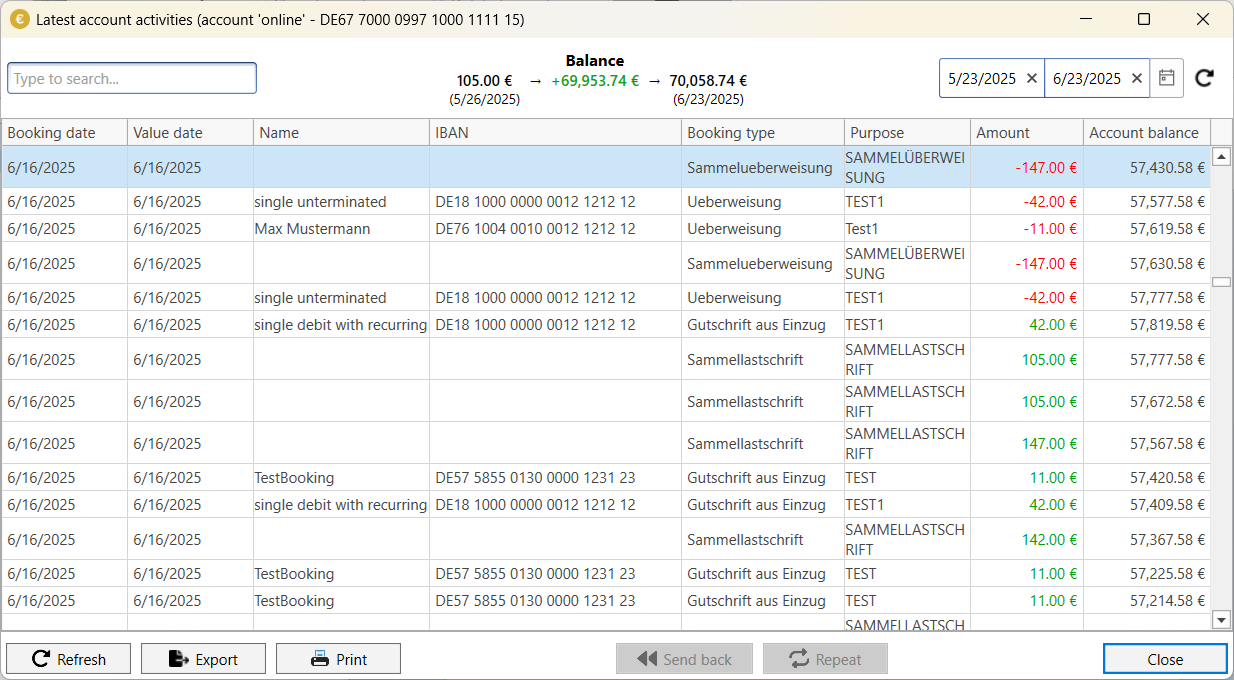
Do you want to share last week's account turnover with your tax advisor? Export the data as PDF or print them directly from the interface.
Use SEPA-Transfer for the most common use cases
SEPA-Transfer is a focused banking tool that covers the most important use cases and provides support especially for regularly occurring payments. Whether partially automated via the user interface or fully automated using command line parameters, SEPA-Transfer helps to put the focus back on the actual daily business or association work.
At JAM, we believe that you should test software extensively before deciding if a tool fits your workflow. That's why we offer a 30-day trial for SEPA-Transfer, completely free of charge and without registration. Give it a try!
Want to always stay up to date? Subscribe to our newsletter now!
Do you like what you've just read, have new ideas or feedback? Visit our contact form and let us know your thoughts!